
Adding a partner
Go to Leads → Partners and click New partner. A partner needs at minimum a Name and Email — that email is where their portal invite goes, and (if you've added portal users) where new-lead notifications are sent.
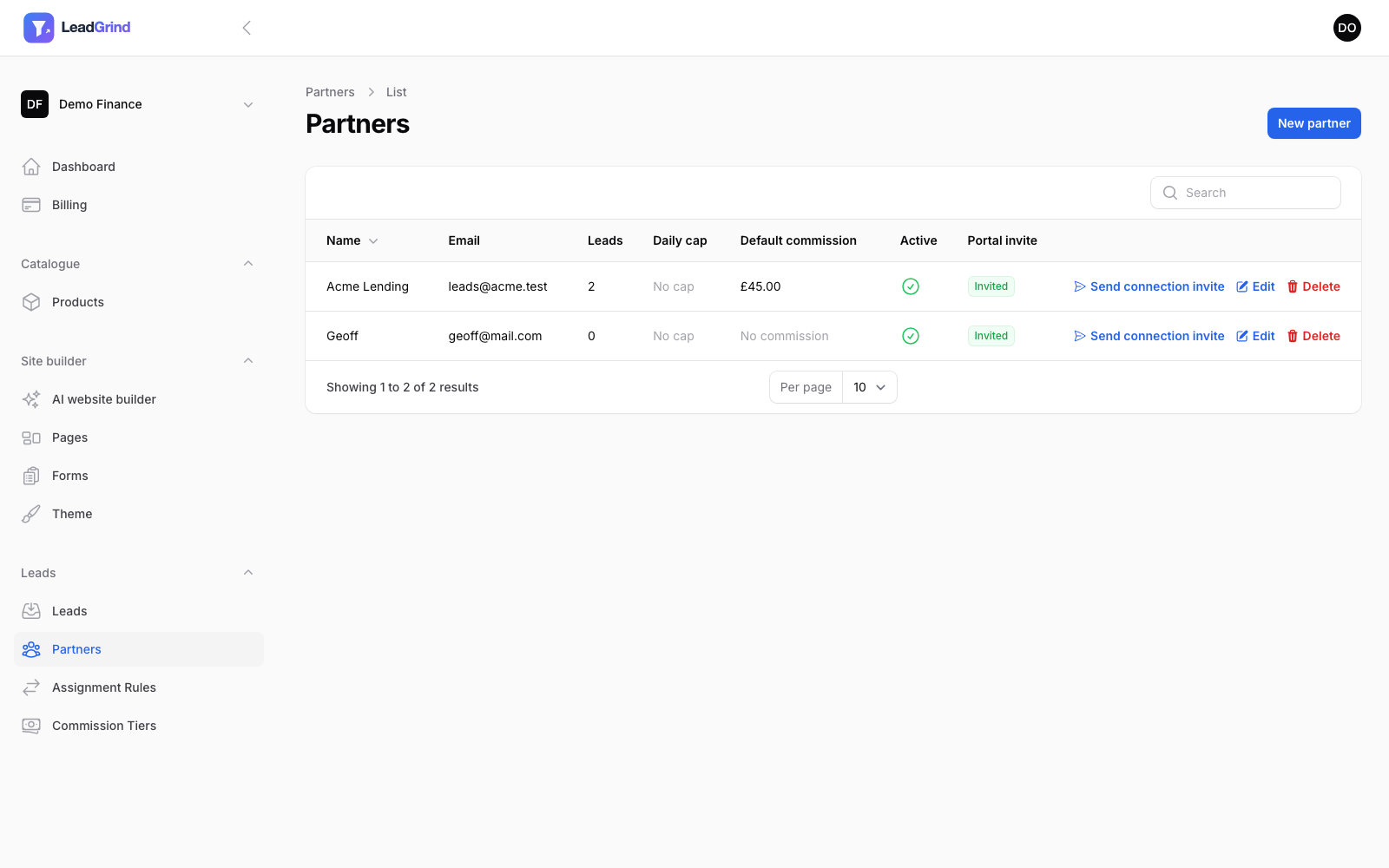
On a partner's own page you'll also find:
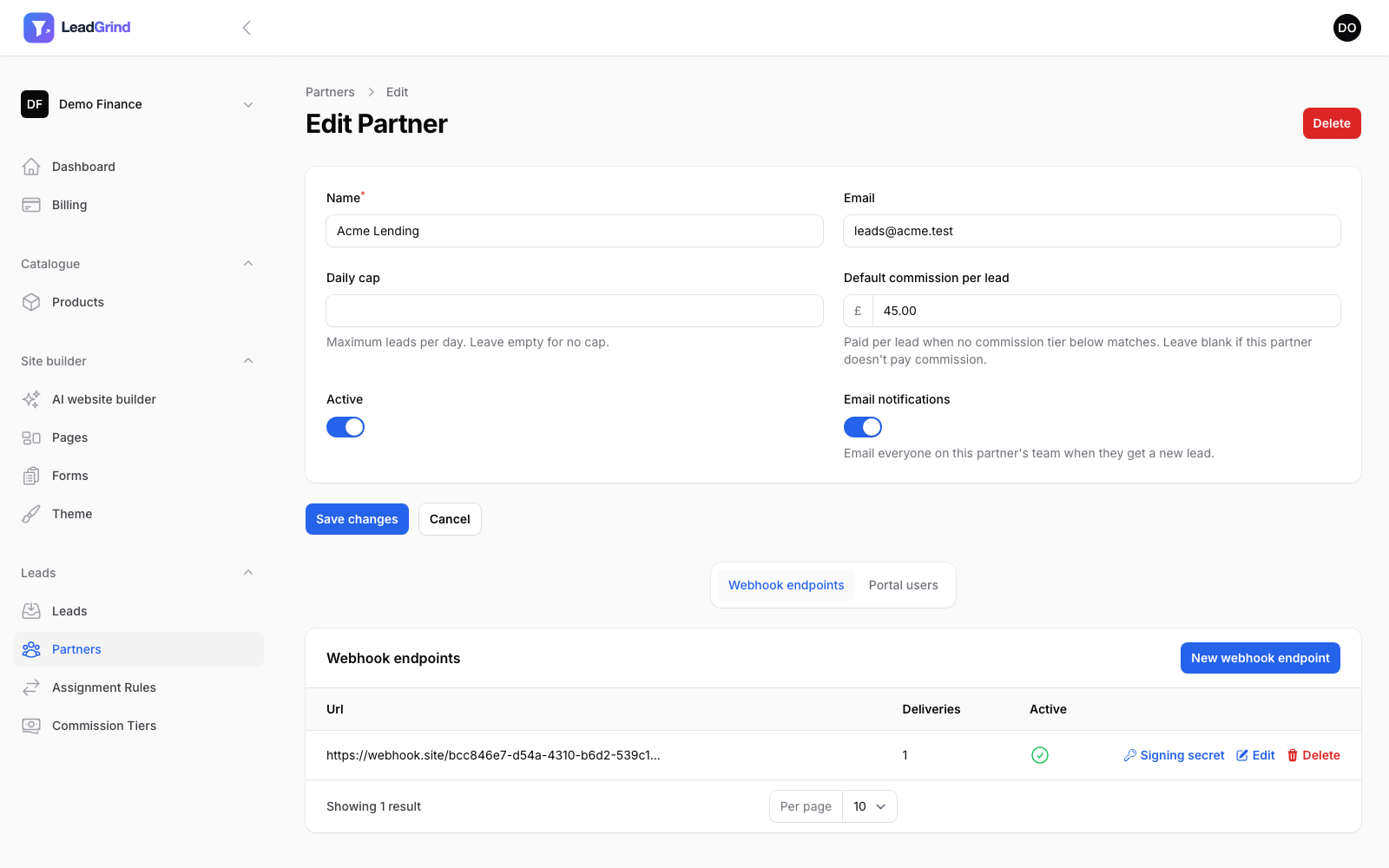
- Daily cap — the maximum leads this partner should receive per day; leave blank for no limit.
- Default commission per lead — see Partner commission.
- Active — inactive partners are skipped entirely when routing leads.
- Email notifications — whether this partner's team gets emailed when they receive a lead.
- Webhook endpoints — add a URL and we'll POST every lead assigned to this partner there in real time, signed so they can verify it came from you.
- Portal users — invite people at the partner to log into their own Partner portal, where they can view their leads and connect their own CRM (currently HubSpot) to receive leads automatically — that connection is set up by the partner themselves from their portal, not by you.
Assignment rules — how a lead picks a partner
Go to Leads → Assignment Rules. Each rule says: if a lead matches these conditions, send it to this partner. Rules are checked in Priority order (lowest number first) and the first matching rule wins.
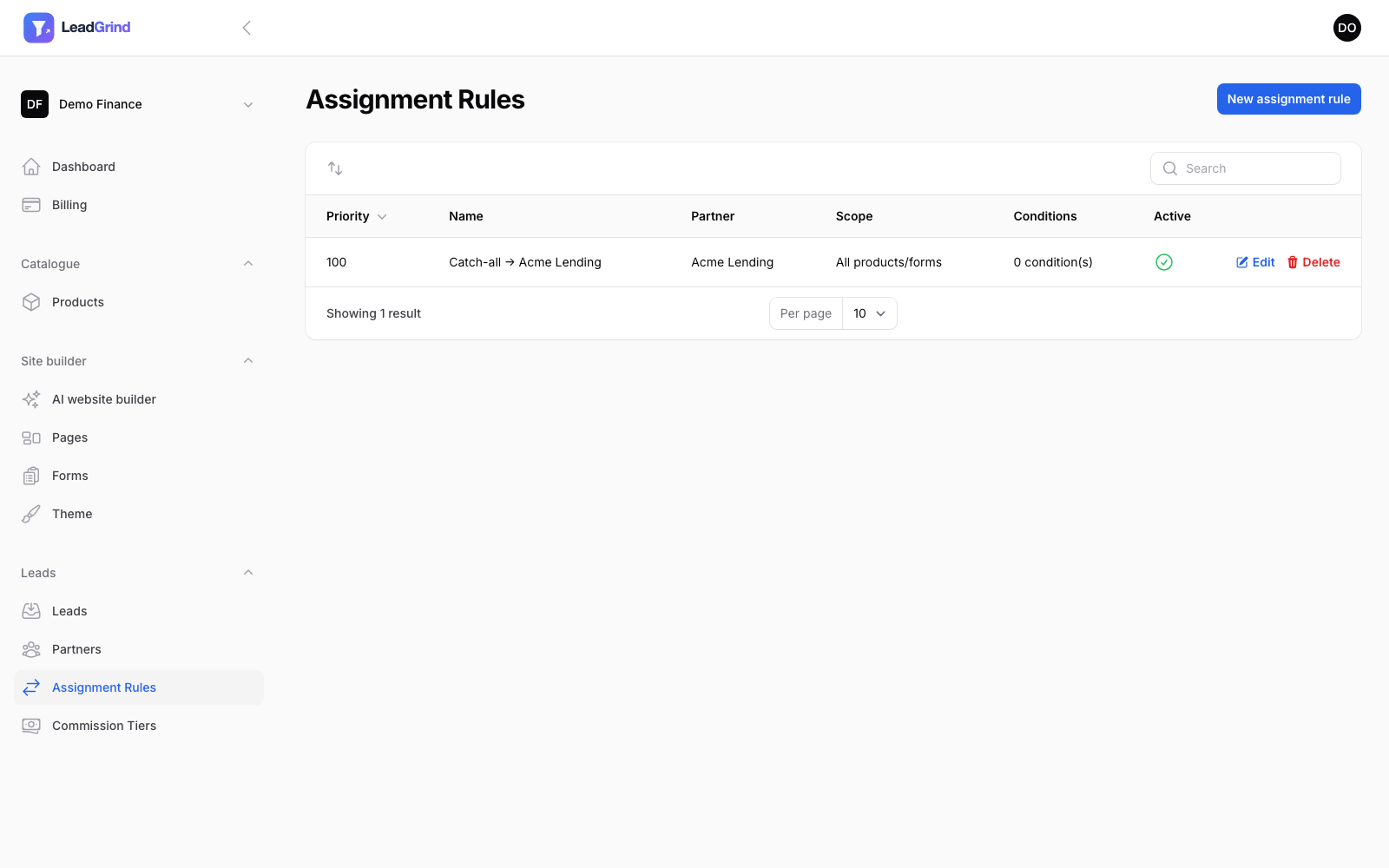
For each rule you set:
- Partner — who receives leads that match.
- Priority — lower numbers are checked first.
- Match type — All (every condition must match) or Any (at least one must match).
- Conditions — compare a form field's Key (see Building a lead capture form)
against a value, e.g.
loan_amount > 50000. Leave conditions empty for a catch-all rule. - Active.
Scoping a rule to one product or form
If you run multiple products or forms, a rule can be limited so it only ever applies to leads from a specific one:
- Limit to product — applies to every form under that product.
- Limit to a specific form — narrower still, just that one form. Picking a product first filters the form list to forms under it.
Leave both blank and the rule applies to every lead regardless of which form it came from — this
matters because a generic condition like loan_amount > 50000 could otherwise accidentally match a
same-named field on a completely different form. The Scope column in the list always shows you
exactly what a rule currently applies to.
What happens when nothing matches
If no rule matches a lead, it's still saved — see Managing your leads — just without a partner attached, and it'll show up in your dashboard's Unassigned count. A catch-all rule (priority set high, no conditions) is the usual way to make sure nothing falls through.