
What it does
The AI website builder drafts a complete first page for you — a hero section, feature highlights, an FAQ, and a call to action — plus a matching multi-step lead form, based on a short description you give it. It doesn't publish anything automatically: everything it creates lands as a draft in the normal page editor for you to review, tweak, and publish when you're happy with it.
Find it under Site builder → AI website builder in the sidebar.
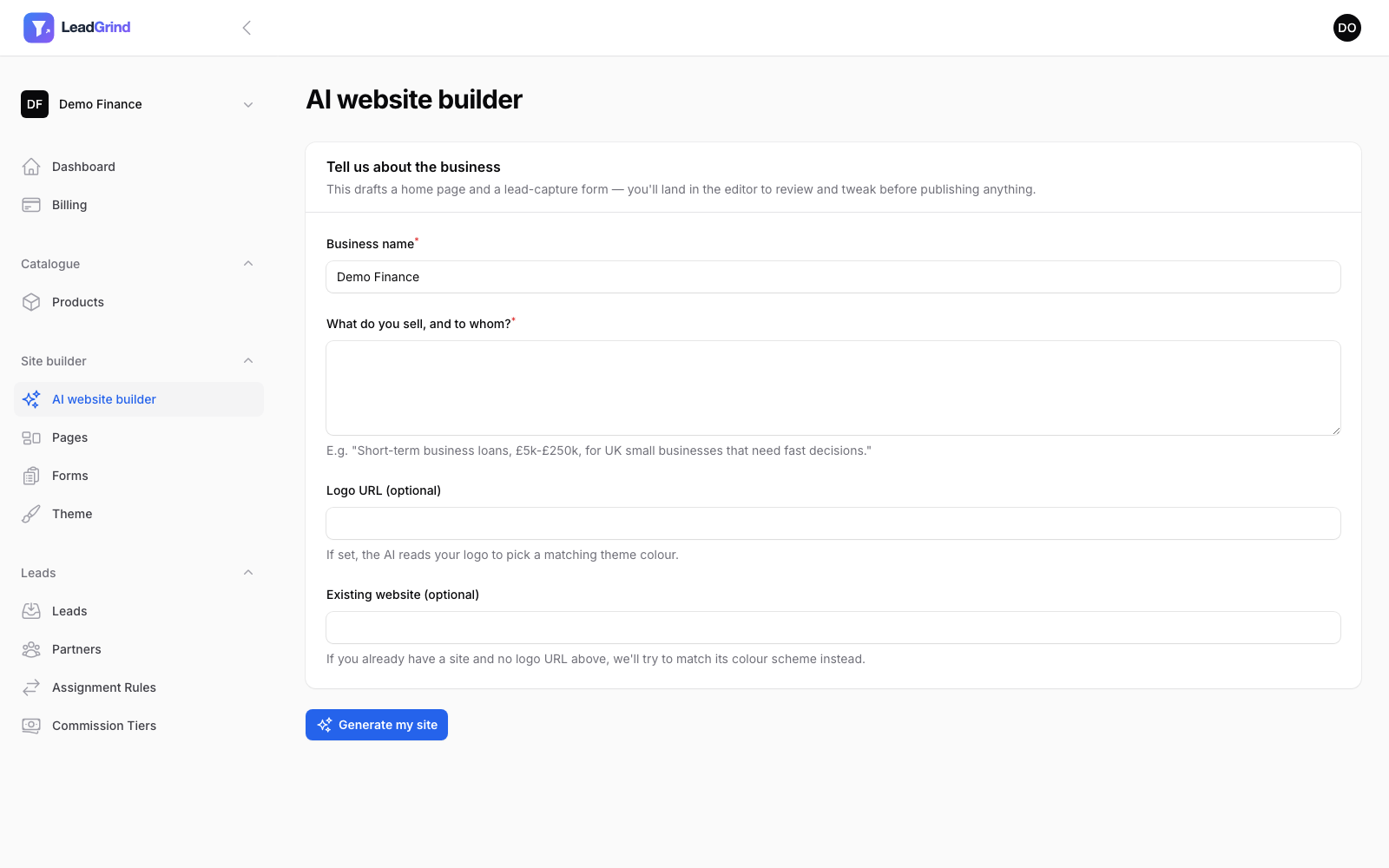
Filling in the form
- Business name — pre-filled from your account, edit if needed.
- What do you sell, and to whom? — be specific. "Short-term business loans, £5k-£250k, for UK small businesses that need fast decisions" gives a much better result than "business loans."
- Logo URL (optional) — if set, the AI reads your actual logo image and picks a theme colour to match it. This takes priority over the option below.
- Existing website (optional) — if you already have a site and didn't set a logo URL, the builder looks at your existing site's colours and tries to match them instead.
If you leave both optional fields blank, the AI picks a sensible, professional colour palette on its own based on your business description.
What you get
Click Generate my site and, after a short wait, you'll land directly in the page editor with:
- A draft, unpublished page with a hero, features, FAQ and call-to-action section, using your brand's theme colour.
- A new form with a few qualifying questions specific to what you described, plus the standard contact fields (name, email, phone) and a consent checkbox added automatically.
Nothing is public yet — review the copy, adjust any fields that need it, and turn on Published in the page editor when you're ready. See Building pages with the block builder for how to keep editing from here.
If the result isn't quite right
Run it again — each generation is independent and won't overwrite your existing pages/forms, so you can compare a couple of attempts, or just edit the draft directly. The theme colour it picked is a normal theme setting afterwards, so you can fine-tune it under Customizing your theme too.