
Creating a form
Go to Site builder → Forms and click New form. Give it a Name (shown internally and as the form's title) and, optionally, a Product if you use the Products catalogue to organise routing and commission per product line.
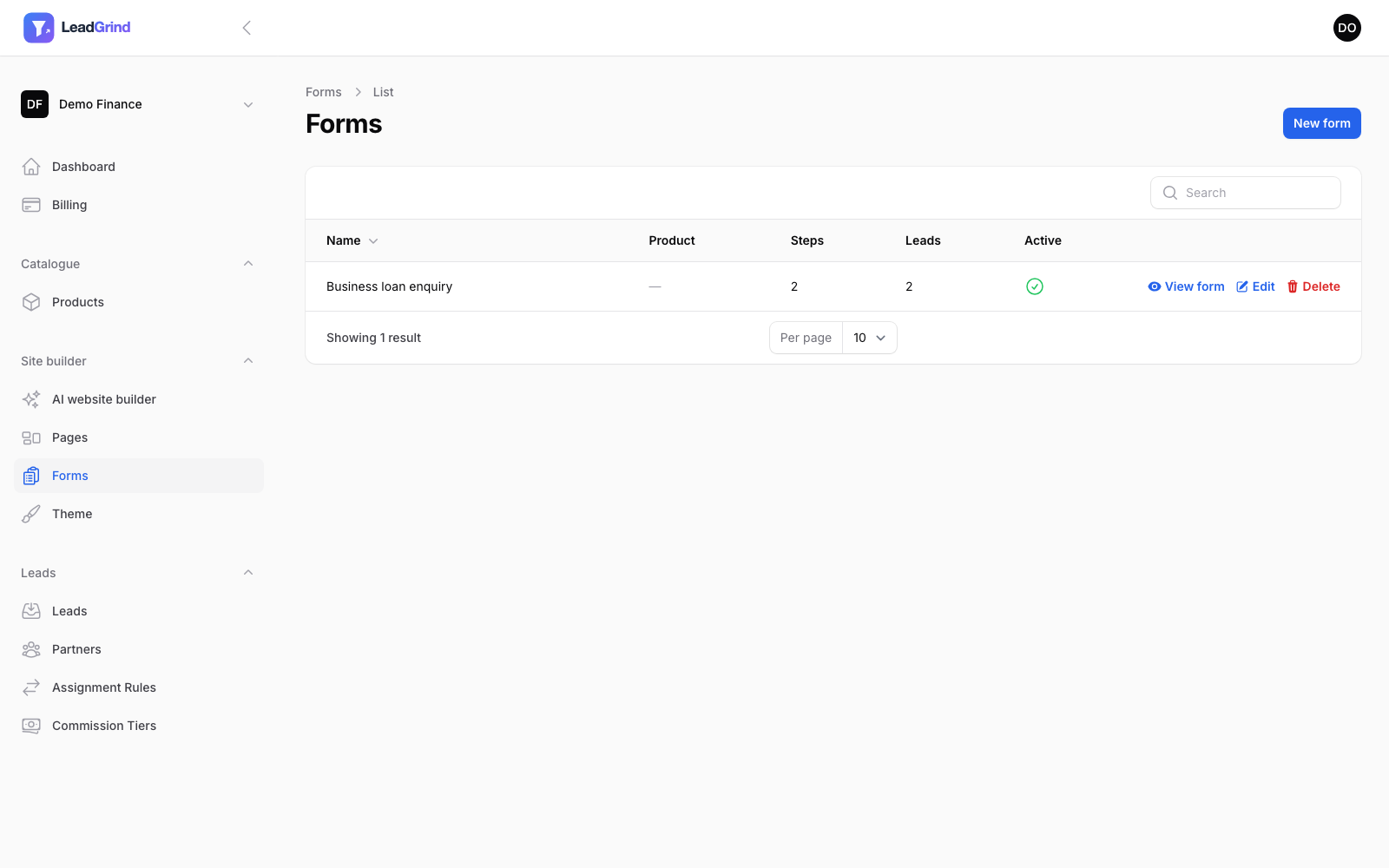
Other top-level settings:
- Slug — used in the form's public URL,
/f/{slug}. Leave blank to generate from the name. - Success message — shown after someone submits, if you haven't set a Redirect URL.
- Redirect URL — optional; send visitors to your own thank-you page instead.
- Hero heading / copy / image — an optional banner shown above the form on its public page.
Steps and questions
Forms are built from one or more steps, each with its own questions — this is what gives you a multi-step, progress-bar form rather than one long page.
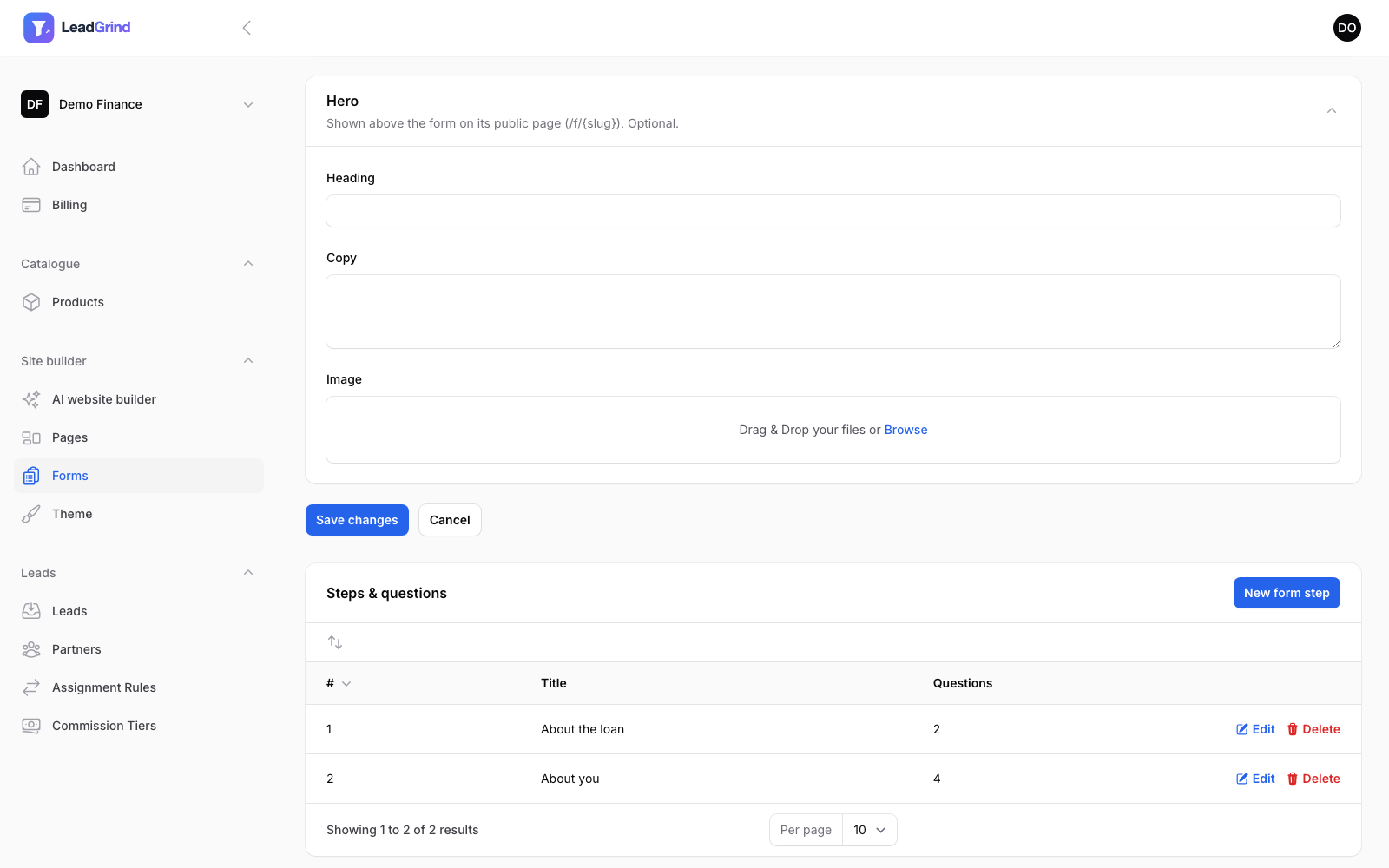
Click New form step to add a step, then Edit on a step to add questions to it. For each question you set:
- Label — the question shown to the visitor.
- Key — the internal field name used for routing rules, webhooks, and CRM mapping. Keep this stable once you're using it in an assignment rule or webhook — see Routing leads to partners.
- Type — see the table below.
- Required.
- Placeholder / Help text — optional.
- Options — only for Select, Radio or Checkbox, a list of value/label pairs.
Available field types
| Type | Use for |
|---|---|
| Text / Long text | Free text answers |
| Validated email address | |
| UK phone number | Validated UK phone number |
| Number / Money | Numeric answers, e.g. loan amount |
| Date | A date picker |
| UK postcode | Postcode with lookup-assisted entry |
| Address lookup | Full address, assisted by postcode lookup |
| Companies House search | Look up a UK company by name, autofills company number |
| Dropdown / Multiple choice (one) / Multiple choice (many) | Select, radio, or checkbox groups — set your own Options |
| Consent tick box | A single checkbox with your own consent wording |
Where the form appears
Every form has its own public page at /f/{slug} — share that link directly, or embed the form
inside a page using the Form embed or Hero (split) block in the
page builder, which lets you put it alongside your own headline and content
rather than on its own bare page.
Where submissions go
Every submission becomes a Lead — see Managing your leads — and, if you have routing rules set up, gets automatically assigned to a partner per Routing leads to partners.